For a long time, 8GB RAM was the safe answer. Not luxurious, not minimal—just enough.
In 2026, that answer has started to crack.
Laptops are faster than ever, SSDs are standard, and CPUs are powerful. Yet many users still complain that their systems feel slow, stutter during multitasking, or lag when switching apps. In most cases, the problem isn’t the processor. It’s memory pressure.
Instead of theory or synthetic benchmarks, this guide focuses on real-world use. You’ll see what 8GB RAM can still handle, where it struggles, and how to test your own laptop step by step.
Why RAM Matters More Than Ever
Microsoft’s official minimum for Windows is still low — 4GB — but that’s a baseline, not a realistic daily target for modern multitasking or web workloads.
At the same time, industry testing and coverage in 2025–2026 show a clear trend: 16GB has become the practical sweet spot for most people who keep a machine for several years. Market forces (DDR5 demand, AI datacenter consumption) are also pushing RAM prices and product choices around, which affects what manufacturers ship as standard.
Modern software behaves differently than it did even five years ago.
- Browsers keep tabs active.
- Web apps act like desktop software.
- Background services rarely sleep.
- Operating systems aggressively cache data to feel “snappy.”
RAM is no longer just storage. It’s working space.
When that space runs out, Windows starts moving data to the SSD. Even fast SSDs are dramatically slower than RAM. That’s when you feel pauses, stutter, and those annoying half-second freezes.
Chart 1: Typical RAM Usage in Everyday Scenarios (2026)
| Task | Approx. RAM Usage |
|---|---|
| Windows 11 (idle) | 3–3.5 GB |
| Browser (10 tabs) | 2–2.5 GB |
| Browser (30 tabs) | 4–5 GB |
| Slack / Teams | 600–900 MB |
| Photoshop (medium image) | 2–3 GB |
| Video editing (1080p timeline) | 4–6 GB |
| One virtual machine | 4–8 GB |
What this tells us:
On an 8GB system, Windows plus a browser already consumes most available memory. Add one heavy app, and you’re at the limit.
What Happens When RAM Fills Up
Here’s what users usually feel as memory pressure increases.
Chart 2: RAM Usage vs User Experience
| RAM Used | What You Notice |
|---|---|
| 0–70% | Smooth, responsive |
| 70–85% | Minor delays |
| 85–95% | App reloads, lag |
| 95–100% | Freezes, disk thrashing |
This is why two people with the same laptop can report completely different experiences.
Start RAM Testing Yourself
All tests rely on watching memory usage in real time.
- Press Ctrl + Shift + Esc
- Open Task Manager
- Go to Performance → Memory
Keep this window visible during all tests.
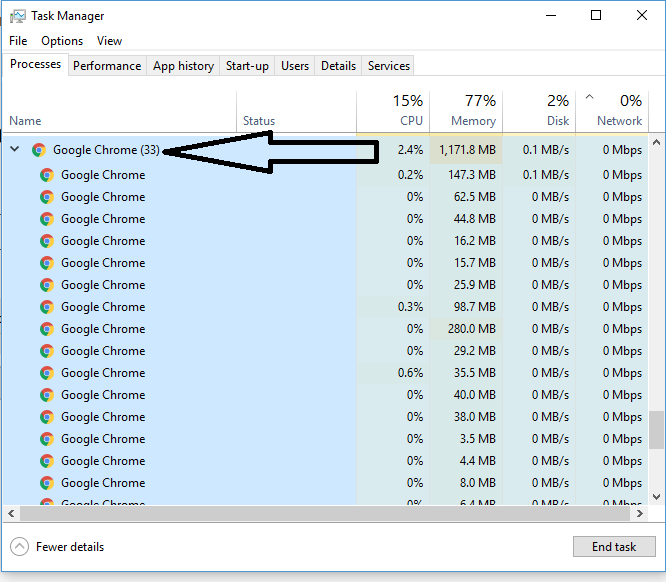
Test 1: Browser Reality Test
This reflects how most people actually use laptops today.
Steps
Open the following:
- Gmail
- YouTube (play a video)
- Google Docs
- 10 news or blog tabs
- Then open another 10 tabs
Switch between tabs rapidly.
What to watch
- RAM usage climbing past 80%
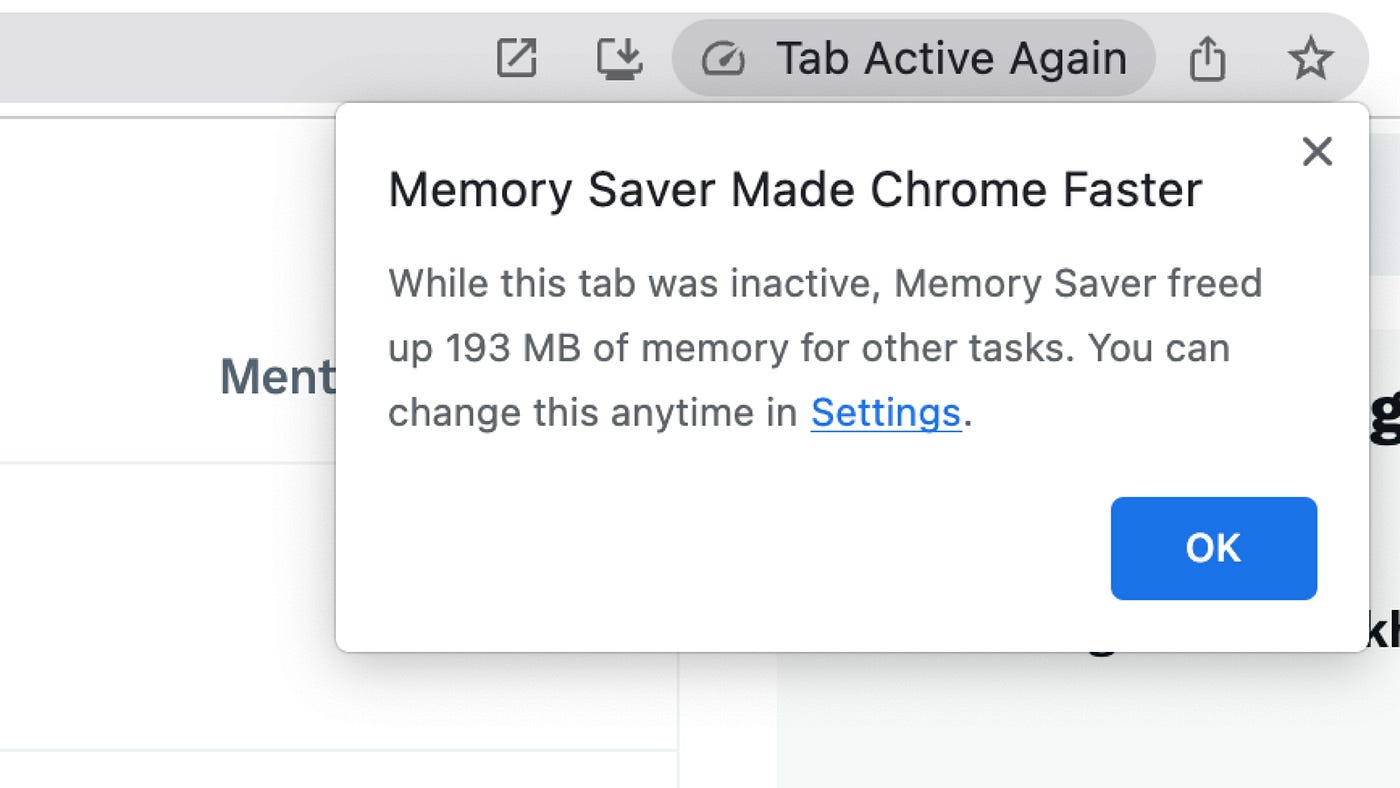
- Tabs reloading when you return to them
- Lag while scrolling or typing.
Result
- 8GB RAM: Tabs reload, browser feels heavy
- 16GB RAM: Tabs stay active, smoother switching
Test 2: Multitasking Stress Test
This simulates a real workday.
Keep all browser tabs open, then open:
- Slack or Microsoft Teams
- File Explorer (copy a large folder)
- Spotify or YouTube Music
Switch rapidly between apps.
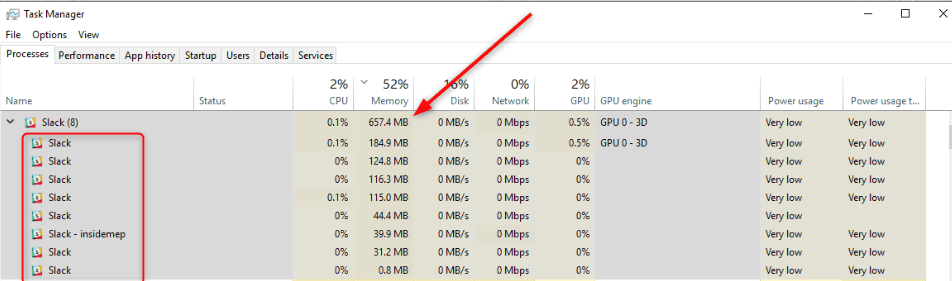
What you’ll notice
- Disk usage spikes when RAM is full
- Short freezes during app switching
- Delayed UI response
This is Windows swapping memory to disk. SSDs help—but they don’t eliminate lag.
Test 3: Creator and Power-User Scenarios
Choose the option closest to how you work.
Option A: Photo Editing
Open Photoshop or GIMP.
Load a large image (50–100MB).
Zoom, apply filters, then switch back to your browser.
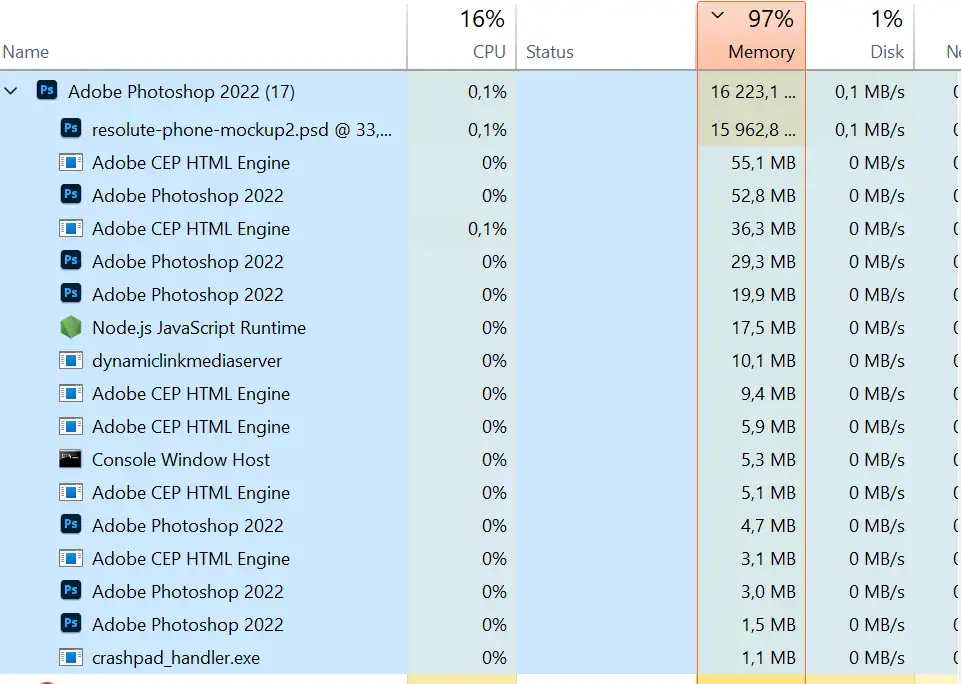

- 8GB: Noticeable pauses when switching apps
- 16GB: Smoother editing and previews
Option B: Video Editing
- Open Premiere Pro or DaVinci Resolve.
- Import 1080p clips.
- Scrub the timeline while browser tabs stay open.

- 8GB: Timeline stutter, preview lag
- 16GB: More consistent performance
Option C: Development or Virtual Machines
Open:
- VS Code
- Browser with documentation
- One VM or Docker container


- 8GB: Constant swapping, slower builds
- 16GB+: Stable, predictable workflow
Why SSDs Don’t Solve the Problem
Many people say, “It’s fine, I have an SSD.”
True—but incomplete.
RAM speeds: 40,000+ MB/s
SSD speeds: 3,000–7,000 MB/s
That gap matters. When Windows swaps memory to disk, even briefly, your workflow breaks.
This is why laptops with fast SSDs can still feel slow.
DDR4 vs DDR5: Does It Change the Answer?
Not really.
DDR5 is faster, but capacity matters more than speed for everyday use.
- 16GB DDR4 is better than 8GB DDR5
- Speed helps bandwidth
- Capacity prevents slowdowns
If you must choose, always pick more RAM over faster RAM.
Who Is 8GB Still Enough For?
Chart 3: RAM Recommendation by User Type
| User Type | Verdict |
|---|---|
| Email + light browsing | ✅ Acceptable |
| Students (Docs, Zoom, tabs) | ⚠️ Borderline |
| Office multitasking | ❌ Not ideal |
| Photo / video editing | ❌ No |
| Developers / VMs | ❌ Absolutely not |
Buying and Upgrade Advice for 2026
If you’re buying a new laptop
- Avoid soldered 8GB models
- Aim for 16GB minimum
- Prefer user-upgradeable RAM slots
If you already have 8GB
- Check if RAM is upgradeable
- Adding another 8GB often gives the biggest performance boost per dollar
- Match DDR type and speed
If you plan to keep the laptop 4–5 years
- Software will get heavier
- 8GB will feel tight sooner than expected
Final Verdict
Is 8GB RAM still enough in 2026?
- Technically: Yes
- Comfortably: Often no
- Long-term: Not for most users
If your laptop supports it, upgrading to 16GB RAM is one of the most noticeable improvements you can make—often more impactful than a CPU upgrade.




Share Your Views: