We’ve all been there. You’re clearing out old files, moving folders around, or emptying the Recycle Bin to free up space — and then it hits you. That file you just deleted? You actually needed it. Maybe it was a client presentation, years of family photos, or a thesis draft you forgot to back up.
The good news: deleted doesn’t always mean gone. When you delete a file, your computer usually just marks that space as “available” — the actual data often sticks around until something else overwrites it. That’s the window RecoveryFox AI is built to work in, and it’s worth understanding how to use it before that window closes.
What Is RecoveryFox AI?
RecoveryFox AI is a Windows data recovery tool built by WonderFox that helps you get back files lost to accidental deletion, formatting, corruption, or a misbehaving drive. It works across a wide range of storage devices — internal hard drives, SSDs, USB flash drives, SD cards, and the Recycle Bin — and it’s designed so that someone with zero technical background can still recover files with confidence.
What sets it apart from a lot of the older recovery tools out there is the “AI” part of its name isn’t just marketing. Its scanning engine is built to recognize file signatures and rebuild scattered, fragmented pieces of data into complete, usable files — something that becomes especially important when a file has been deleted for a while or a drive has been formatted.
A few things that stand out about it:
- Broad file support. It’s built to recognize and recover well over 200 file types — everyday documents, photos, videos, and more specialized formats like CAD files, RAW camera images, and databases.
- Two-stage scanning. It runs a fast Quick Scan first (great for things you deleted five minutes ago), then automatically follows up with a deeper AI Scan that digs into fragmented and long-lost data.
- Preview before you commit. You can look inside a file — photo, document, whatever it is — before you actually recover it, so you’re not restoring a folder of junk by accident.
- Non-destructive scanning. The scan itself is read-only, so running it doesn’t put your existing data at further risk.
- Free scan and preview. You can scan a drive and see exactly what’s recoverable at no cost; you only pay when you’re ready to actually restore the files.
It’s a fit for a lot of everyday situations: a student who accidentally deleted an assignment, a photographer who wiped an SD card too soon, a small business that formatted the wrong drive, or an IT person cleaning up a company laptop who now needs last month’s reports back.
The First Rule of Data Recovery: Stop Using the Drive
Before we get into the how-to, there’s one rule that matters more than any software feature: the moment you realize files are missing, stop using that drive.
Here’s why. When a file is deleted, the space it occupied gets flagged as free — but the actual bits are still sitting there until the system writes something new over them. Every new file you save, every program you install, every temp file your browser quietly creates in the background is a chance to permanently overwrite the very data you’re trying to get back.
This is especially true for USB flash drives and SD cards, since they’re small and get overwritten fast, and even more urgent for anything living on your desktop or system drive, where Windows and other apps are constantly generating temporary files. The longer you wait, the lower your odds — so if you suspect a file is gone, pause, don’t panic, and go straight to recovery.
One more caution: if you’re dealing with a mechanical hard drive that’s making clicking or grinding sounds, that’s a sign of physical failure, not a software problem. Power it down and get it to a professional recovery service rather than running scanning software on it.
How to Recover Deleted Files with RecoveryFox AI (Step by Step)
Here’s the general workflow, whether you’re rescuing files from an emptied Recycle Bin, a USB drive, or an internal hard drive.
Step 1 — Launch RecoveryFox AI.
Open the program (running it as administrator helps it access system-level locations properly), and you’ll land on a clean screen listing your drives, partitions, and the Recycle Bin.
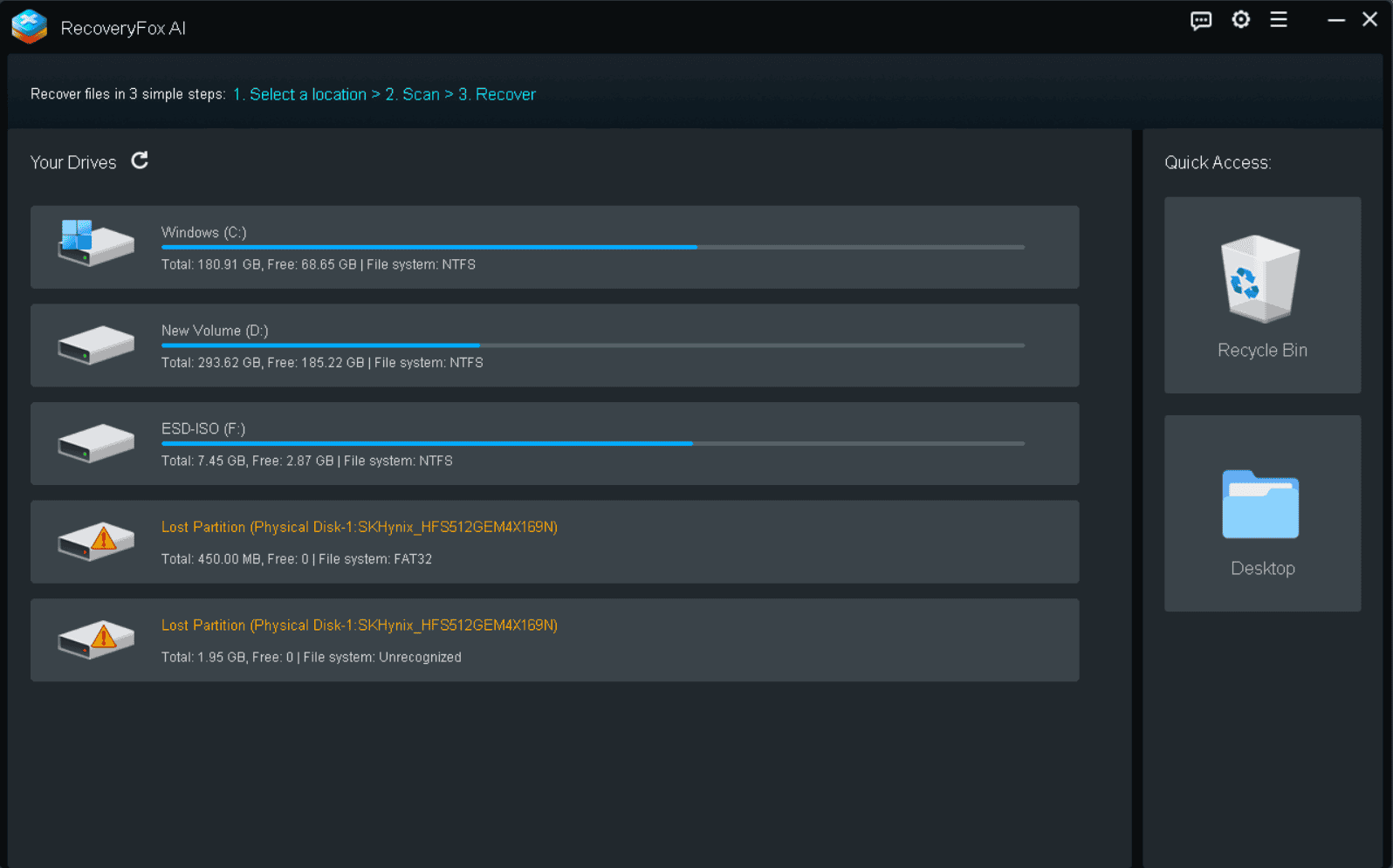
Step 2 — Select the location where you lost your files.
Click on the drive, folder, or device you want to scan. If you’re recovering from an external device like a USB drive or SD card, make sure it’s properly connected first — and double-check it’s compatible with your computer’s ports, since some newer drives may need an adapter.
Step 3 — Let it scan.
RecoveryFox AI starts with a Quick Scan, which is ideal for files you deleted recently — say, with Shift+Delete or by emptying the Recycle Bin. These files often come back with their original names and folder structure intact. Once Quick Scan wraps up, the deeper AI Scan kicks in automatically, hunting for older, fragmented, or more stubborn data and rebuilding it piece by piece.
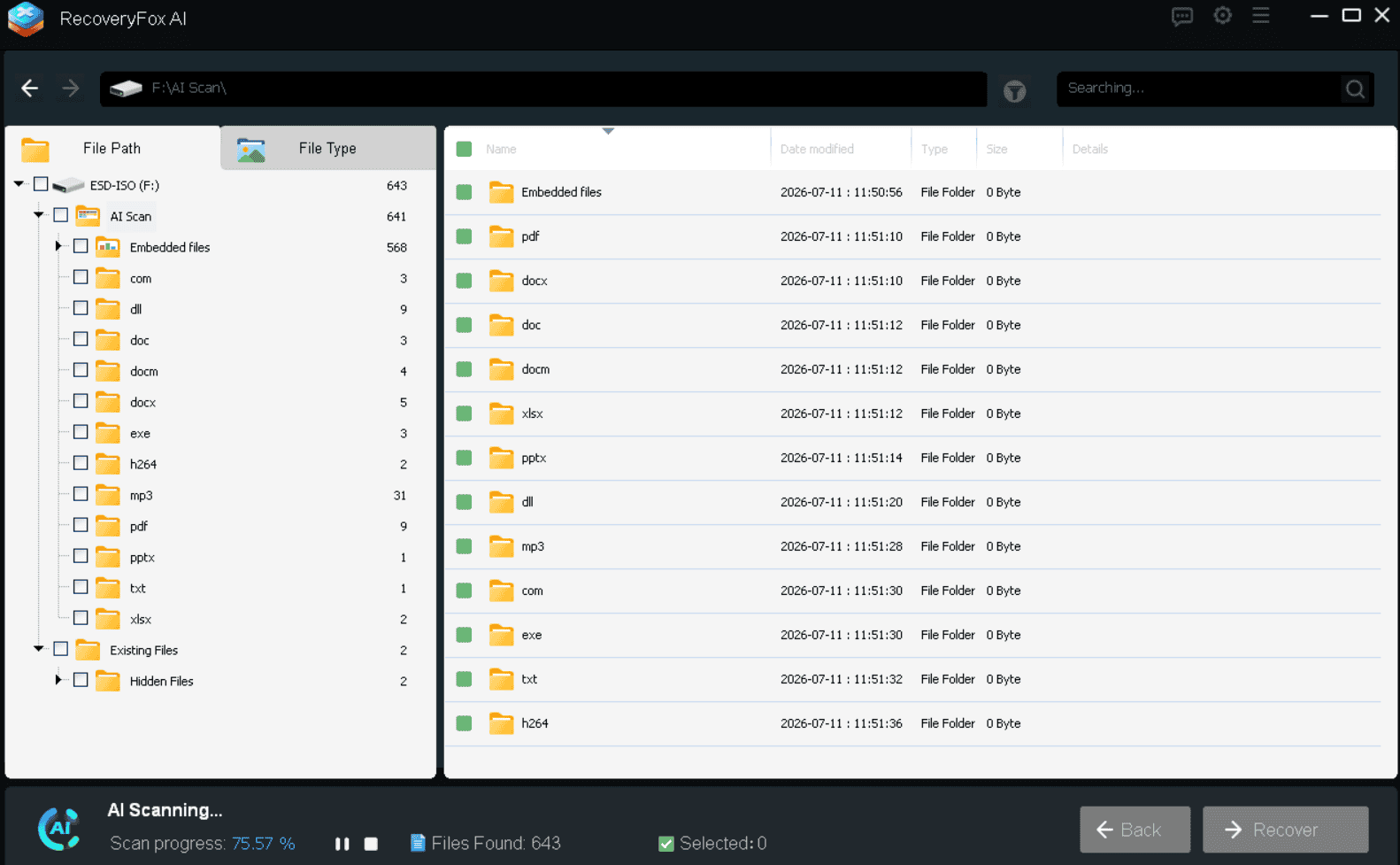
Scan times vary quite a bit depending on the size of the drive and how much data is on it — anywhere from a few minutes to several hours (or, for very large or badly damaged drives, longer). You don’t have to wait it out passively, though: you can pause the scan at any point to preview and recover files you’ve already found.
Step 4 — Preview your files.
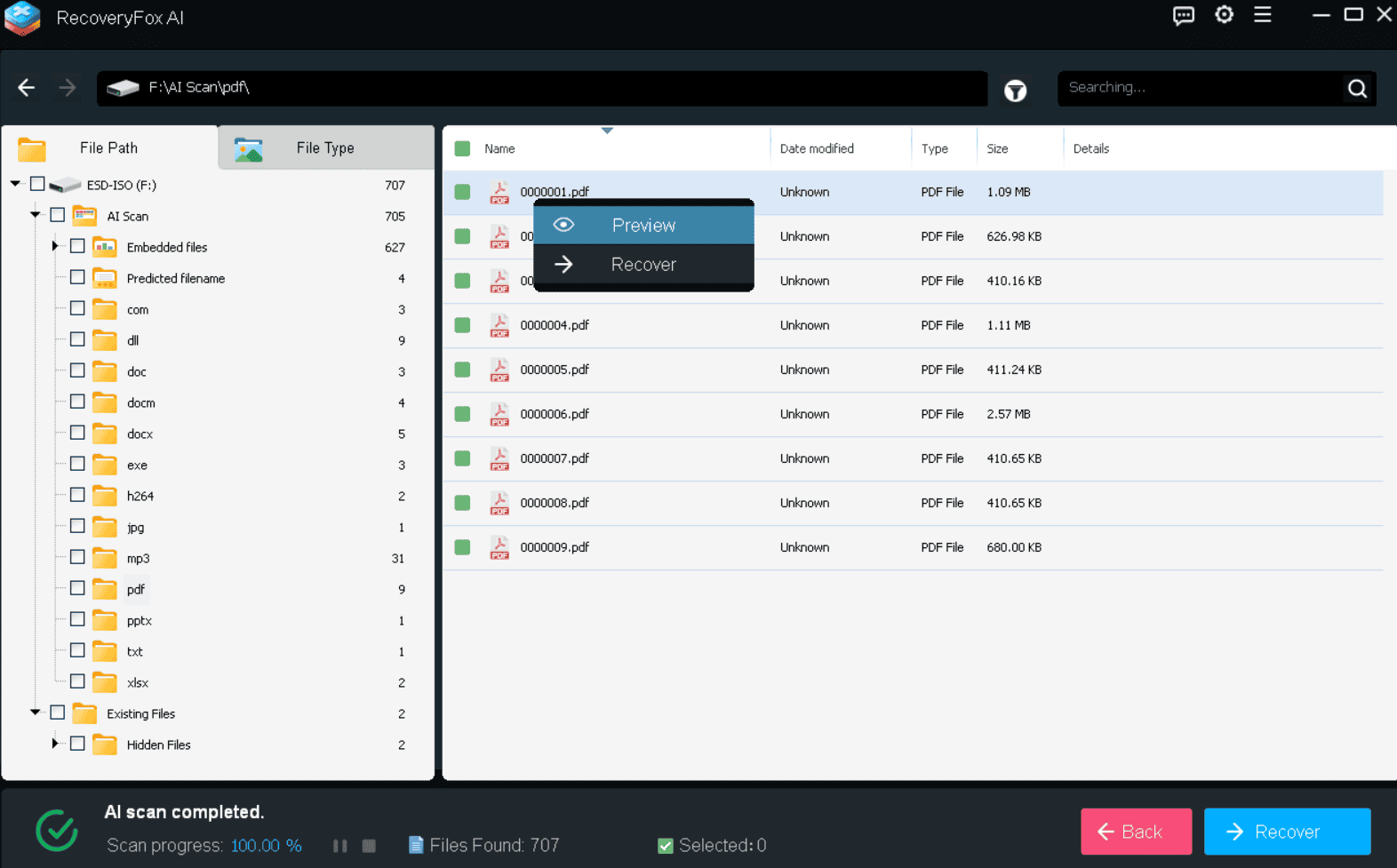
Before recovering anything, right-click a file and select “Preview” to confirm it’s actually the file you want, and that it’s intact. This is a great way to avoid wasting time restoring a huge batch of files only to find half of them are corrupted duplicates or things you didn’t actually need.
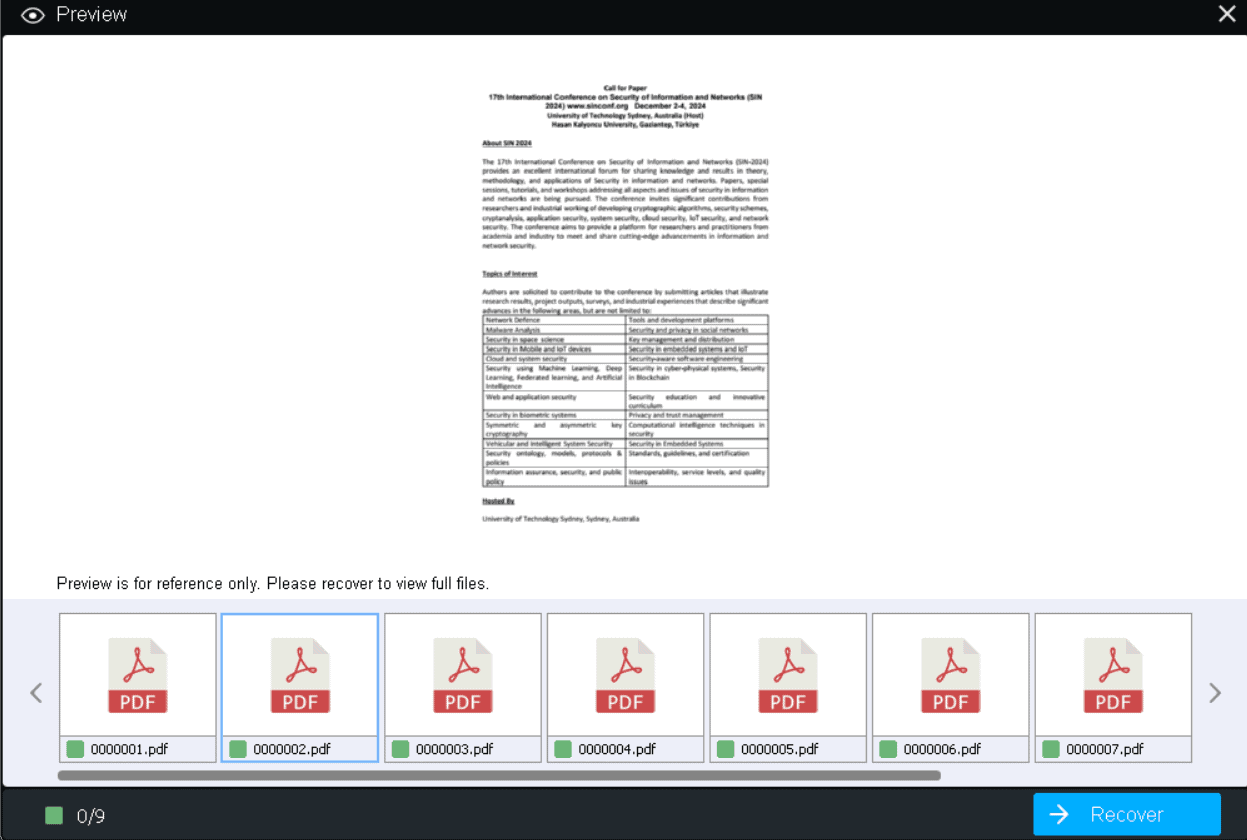
Step 5 — Recover to a safe location.
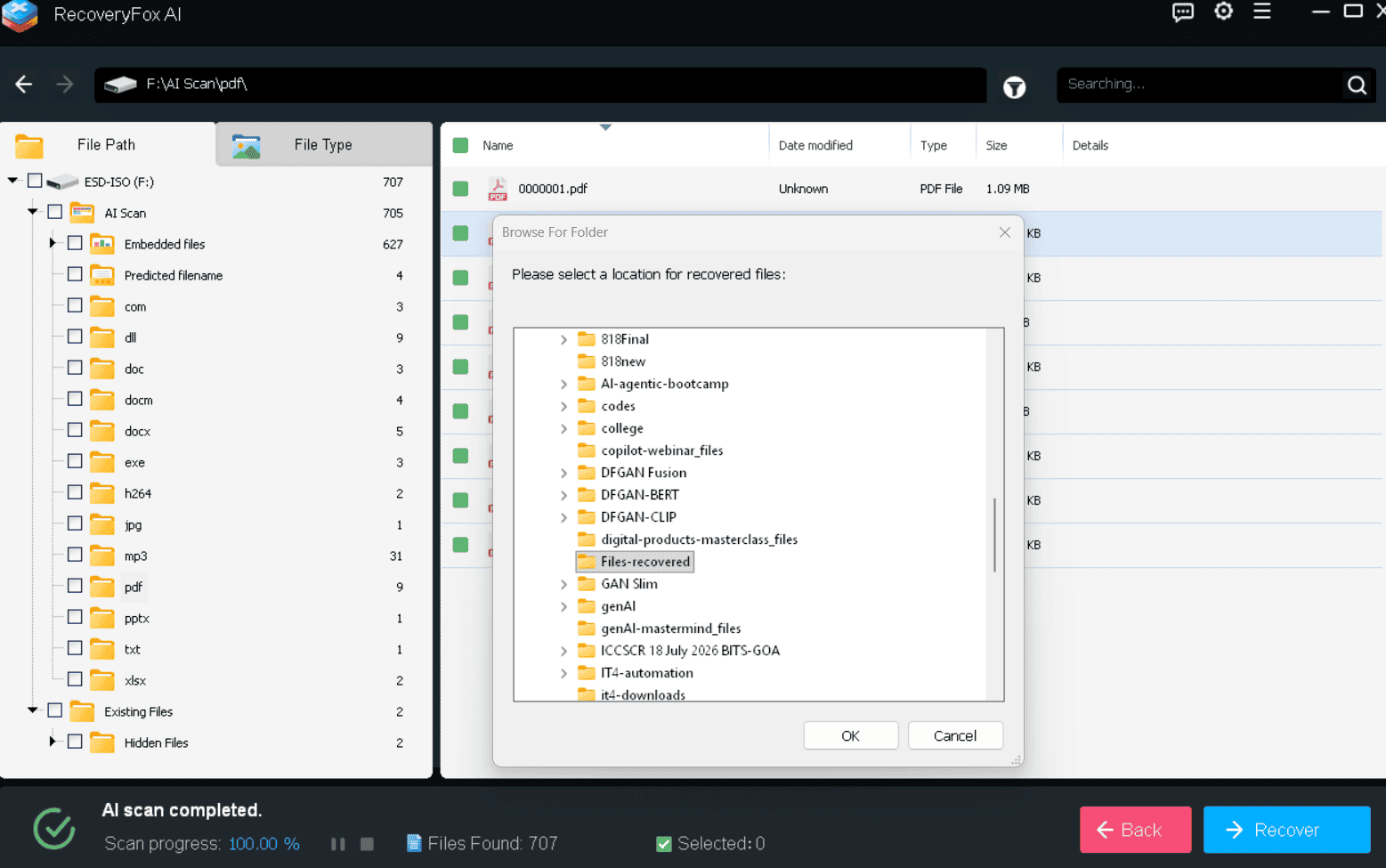
Select what you want — everything, a specific folder, or individual files — and hit Recover. Then choose where to save it. This part matters: never save recovered files back onto the same drive you’re recovering them from. Doing so risks overwriting other recoverable data that’s still sitting in that unallocated space. Use a different internal drive, or better yet, an external USB drive.
If you want to speed things up, RecoveryFox AI’s Settings menu lets you skip things like empty space, temporary files, or damaged archives before you start scanning — useful if you already know roughly what you’re looking for.
A Quick Word on USB Drives Specifically
USB flash drives and SD cards deserve a special mention, because they behave a little differently from your main hard drive. Files deleted from a USB drive typically don’t pass through the Recycle Bin the way files on your C: drive do — they’re removed more directly, which makes speed even more important.
The upside is that RecoveryFox AI is built with this in mind, working across the common file systems you’ll find on flash storage (NTFS, FAT32, and exFAT) and across popular drive brands. Whether the files were deleted by accident, lost during a botched format, or made inaccessible by file system corruption, the same Quick Scan → AI Scan process applies. Just plug the drive in, select it from the list, and let the software do its work — resisting the urge to save anything new to it in the meantime.
Is Recovery Actually Guaranteed?
No recovery tool can promise 100% success every time — and you should be skeptical of any that claims otherwise. What determines whether your files come back usually comes down to:
- How much time has passed since deletion (less time = better odds)
- Whether the space has been overwritten by new data
- What caused the data loss — simple deletion is generally easier to recover from than physical drive damage
- The file system and drive type involved
That said, in most everyday cases — accidental deletion, formatting, or minor file system errors — there’s a genuinely good chance your data is still sitting there, waiting to be found. The key is acting quickly and not writing anything new to the affected drive before you scan it.
Final Thoughts
Losing files always feels worse in the moment than it usually needs to. In most cases, “deleted” is really just “hidden,” and tools like RecoveryFox AI exist precisely to close that gap between panic and relief. The process itself isn’t complicated — stop using the drive, run a scan, preview what comes up, and recover to somewhere safe — but doing it quickly and correctly is what makes the difference between getting your files back and losing them for good.
If you’re dealing with data loss right now, the free scan-and-preview option is a low-risk way to see exactly what’s still recoverable before deciding on next steps.


Share Your Views: