The new smartphones are coming with sufficient internal storage unlike older model phones or the budget modes which have limited memory. Storage space is one of the important factors that we consider while buying a mobile phone. But soon after a short span of time, you find that you are not able to install your favorite apps or games since the internal storage is full. By default, all the apps are installed on internal storage only. But with the release of Android Marshmallow and later versions, you can move already installed apps to an SD card which is being used as additional memory storage. The inbuilt utility to move apps to an SD card does not work on all Android-based mobile phones.
Step 1 – Convert External memory card to internal storage
Open settings and navigate to Storage and USB and tap it. This will show the current details of both internal and portable storage. The portable storage cannot be used for installing apps or games on it. In order to do so, you need to format it as internal storage.

Now tap on the SD card and on the next screen open the settings by tapping on the three dots on the upper right corner of the mobile display screen. Then tap on settings.

Now tap on “Format as Internal”.

| “Note: Formatting the SD card will erase all the data on it. So it is necessary to back up all the data on SD card to some other location.” |
In the next screen, tap on “ERASE & FORMAT”

It will take some time (depending on SD card type and size) to format the memory card. You might get a notification that your SD card is slow.
In this case, it is recommended to use high speed UHS-1 SD cards.
Once the formatting is complete, the next screen will prompt you to “Move Now” or “Move Later”. Select the second option that is “Move Later”.
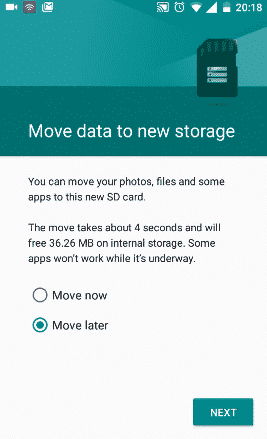
Finish the formatting process by first tapping on Next and then tap on Done.
Step 2 – Move Apps to SD Card
You can move the apps on both Android Marshmallow or Nougat 7.0 by using this procedure. Again navigate to Settings>Storage and tap on internal storage. It will show you all the apps, games and other stuff that is present in internal memory.

Now tap upon Apps and again tap on the app you want to move to SD card.

Once you select the app you want to move to SD card, tap on Change

Now select SD card as the new storage destination

Finally, tap on the move to complete the transfer of app from internal storage to SD card.

“Note: You cannot move some of the apps that are a part of system files.
Enjoy More Free Storage Space on Android phone Now
By formatting the SD card as internal storage, you can also install the apps from Google Play store directly on the SD card. It will help you save a lot of storage space for your personal photos or videos. I hope these tips will help you and do share them with your friends.


After doing this I can no longer store files on the SD card. It seems to work when I copy them but on reboot they have dissapeared?
Went back to Fat32.
Android Pie doesn’t have this option!
My own did not show Format as internal but only Format as Portable. What should do
It’s is posible to resize the sdcard after this? I couldn’t do it(resize it).