Open the app and there is almost nothing on screen. A list of accounts, each with a name, an email address, and a six digit code counting down. That emptiness is the point. Microsoft Authenticator, published under the name Microsoft Corporation and filed in the Business category, exists to do one job per sign-in and then get out of the way.
Approving a sign-in
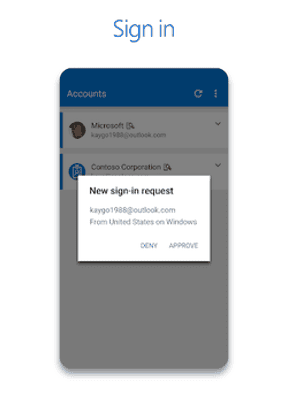
The flow most people see is the push notification. You type your username on a Microsoft login page, the app buzzes, and a card appears with a two digit number to match against the one on screen. Tap the right number, confirm with fingerprint, face, or PIN, and the browser moves on.
Number matching is the part that changed the feel of the app. Older versions let you approve with a single tap, which meant a tired thumb could wave through someone else’s attempt. Now you have to read something off the other screen, which takes two seconds and kills the reflex.
For a personal Microsoft account you can go further and drop the password entirely, signing in with the phone approval alone. It feels strange the first few times. Then it feels obvious.
The code list
Below the push-enabled accounts sit the ordinary TOTP entries. Any service that offers an authenticator app, work, school, or non-Microsoft, can be added by scanning its QR code, and from then on it is a rotating six digit number with a thin timer bar.
Tapping a code copies it. That is the whole interaction. There is no separate add-on, no upsell banner, no feed.
The app also holds passwords and can autofill them, and it keeps a cloud backup tied to your account so a new phone can be restored rather than rebuilt from thirty separate recovery flows. Anyone who has lost an authenticator without backups will understand why that screen matters more than it looks.
Microsoft Authenticator on Windows
The desktop moment arrives on a day when you are signing into Outlook, a work portal, Azure, and two SaaS dashboards before lunch, and the phone is face down across the desk. Reaching for it every ten minutes stops being security and starts being a chore, which is the point where it makes sense to download Microsoft Authenticator for laptop through an Android emulator, keeping the approval prompt in the same window as the login page.
Running it in an emulator works, with two caveats worth knowing in advance. The first is the camera. Adding a new TOTP account means scanning a QR code, so the emulator needs a working webcam passthrough or the account registration step stalls; BlueStacks exposes the host webcam as a virtual camera, which is enough for the scan. Where that is not available, most services offer a text secret key you can paste instead, and that path avoids the camera entirely.
The second is biometrics. There is no fingerprint reader inside the virtual device, so the second factor falls back to a PIN or screen lock that you set within the Android environment. LDPlayer handles the notification side fine, but the unlock will never feel as quick as a thumb on a phone sensor.
Where it feels clunky
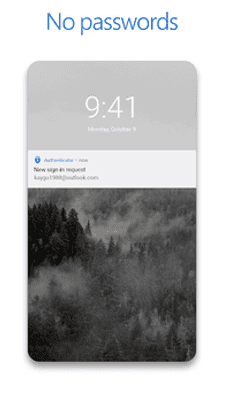
The push notification on a desktop depends on the emulator staying awake and Google Play services being signed in. Close the window to save memory and the prompt arrives late or not at all, which turns a five second login into a confused minute.
Account recovery is also tied to a Microsoft account and, on Android, a cloud backup that does not move across platforms as freely as people assume, so the desktop copy works best as a convenience alongside the phone rather than a replacement for it.
That number matching screen is the thing to keep in mind. On a laptop it sits in a window two inches from the login page, and matching the digits becomes a glance instead of a reach.


Share Your Views: