If it feels like Chrome has been changing under your feet lately, you’re not imagining it. Between a wave of AI features baked directly into the browser and a handful of long-overdue quality-of-life fixes, 2026 has quietly turned Chrome into a genuinely different piece of software than it was even a year ago. Here’s what’s actually new, what it’s useful for, and how to turn it on.
Gemini in Chrome Is No Longer Just a Chatbot in a Sidebar
Google has been building Gemini directly into Chrome for a while now, but the most recent updates push it well past “ask it questions about the page you’re on.”
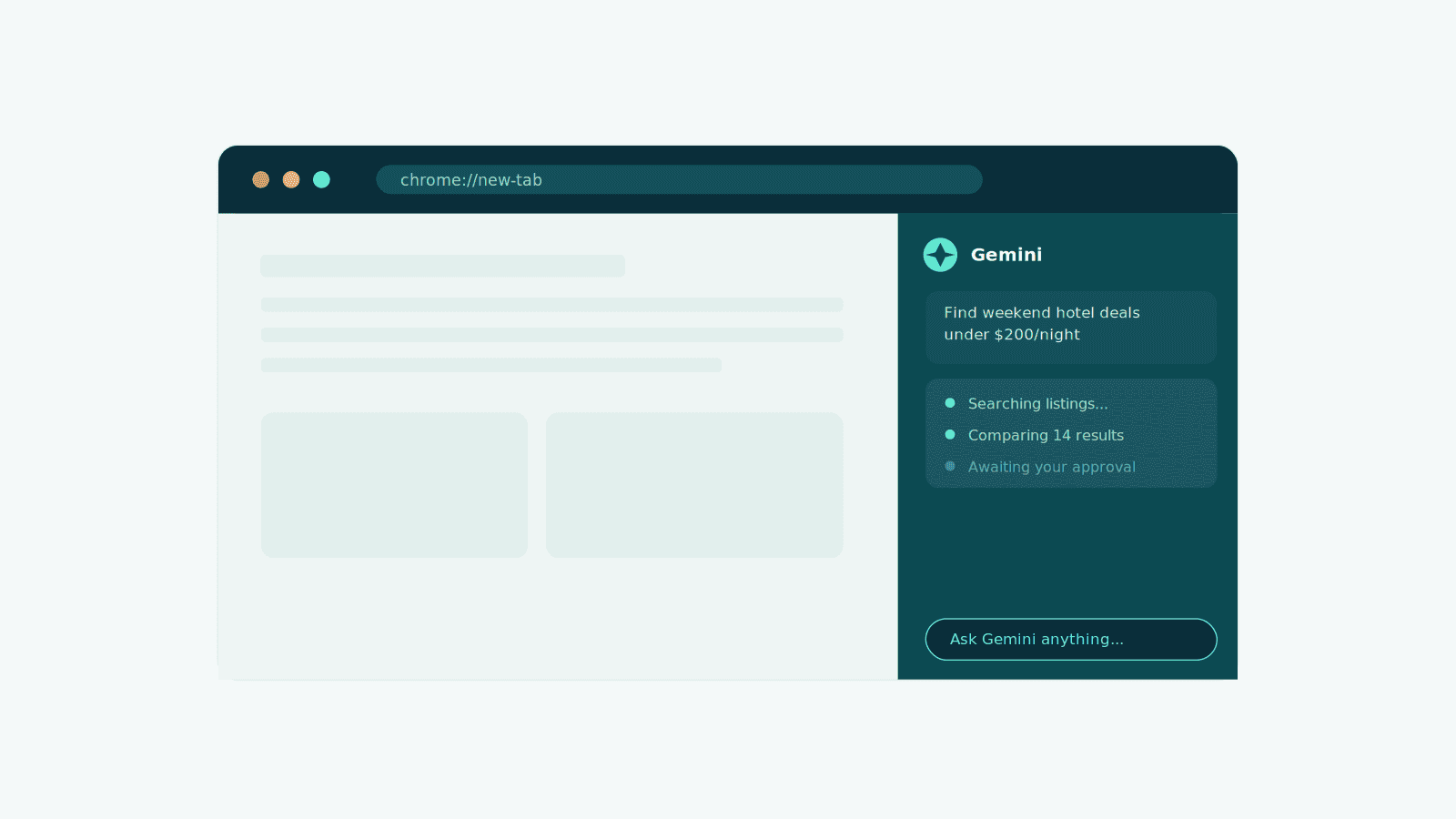
Auto Browse is the standout addition. Instead of you clicking through a website step by step, you can hand Gemini a goal — comparing hotel deals within a budget, filling out a repetitive form, managing a list of saved apartments on a real estate site — and it will navigate the site and take the actions for you, checking back in before anything gets finalized, like placing an order. It’s less “search engine” and more “assistant that actually goes and does the errand.” Worth noting: Auto Browse currently requires a Google AI Pro or AI Ultra subscription, so it isn’t part of the free tier.
Gemini can also now reach into other Google apps you already have open — Gmail, Calendar — and pull context from them, and it’s picked up image generation through Google’s Nano Banana model, so you can ask it to create an image without leaving the tab you’re on.
To use it: look for the Gemini button in the top-right corner of Chrome. It opens a side panel, with the webpage you’re viewing taking up the rest of the window, so you can issue commands to Gemini while still looking at the page it’s working on.
Saved prompts are the smaller but genuinely handy addition here. If you’ve noticed yourself typing the same long instruction to Gemini over and over — “summarize this page in three bullet points,” “compare these products by price and rating” — you can now save that prompt once and reuse it with a click instead of retyping it every time.
A Reading Mode That Finally Uses the Whole Screen
Chrome’s reading mode has technically existed for years, but it’s always felt like an afterthought — a cramped side panel while the cluttered original page sat right next to it, undermining the entire point. That’s been fixed. The updated reading mode now goes full-page, stripping out ads, sidebars, and clutter entirely rather than just tucking them out of the way.
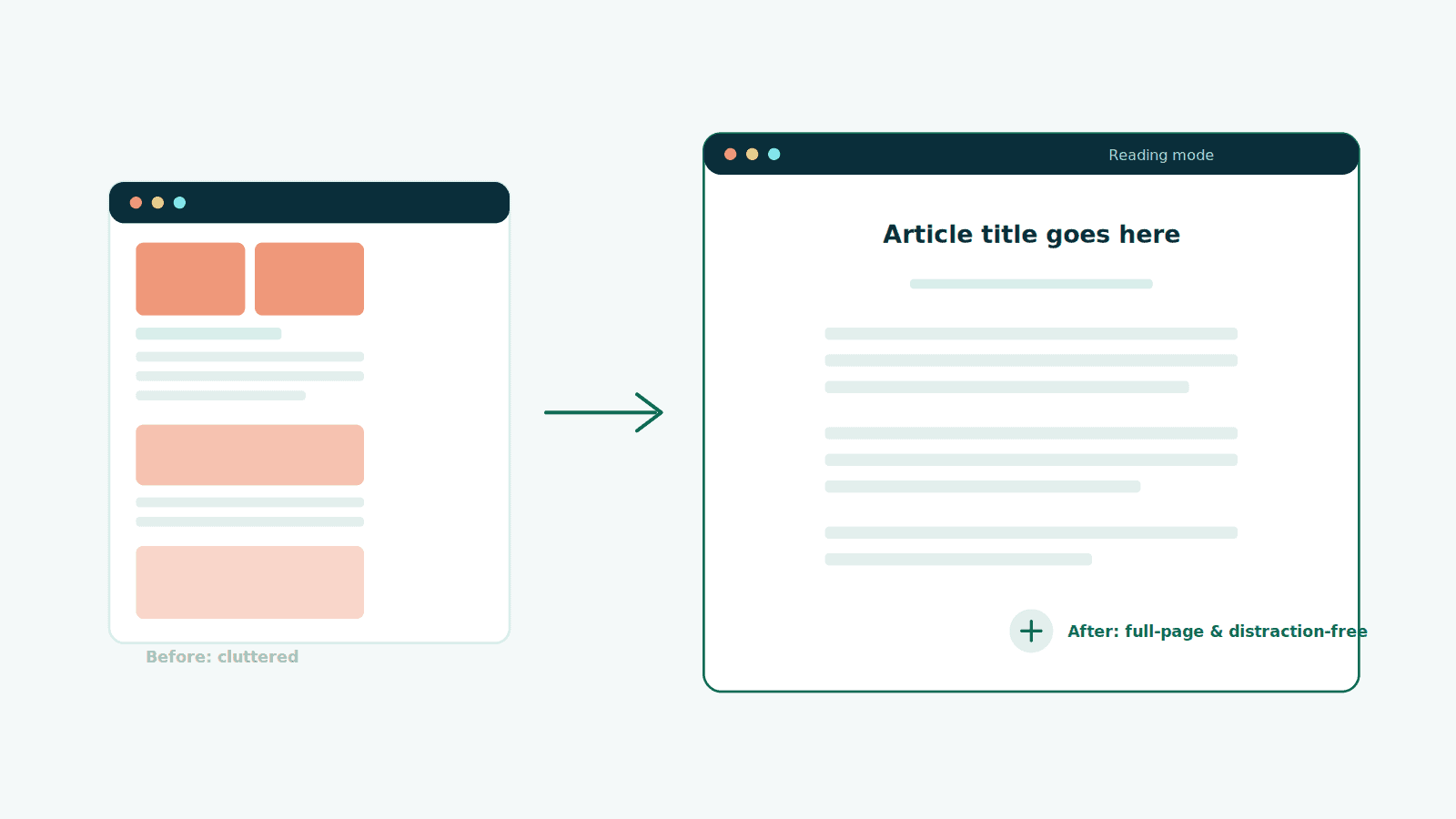
You can get to it the same way as before: right-click anywhere on a page and choose “Open in reading mode,” or go through the three-dot menu → More tools → Reading mode. Once you’re in, the familiar customization options are still there — text size, narration, page color themes — plus a new option for turning off distracting elements more aggressively than before.
Vertical Tabs, for Anyone Drowning in Open Windows
If you’re the type of person who has fifteen-plus tabs open at any given time (no judgment), you know the horizontal tab strip stops being useful somewhere around tab six, once every title shrinks down to an icon and a sliver of text.
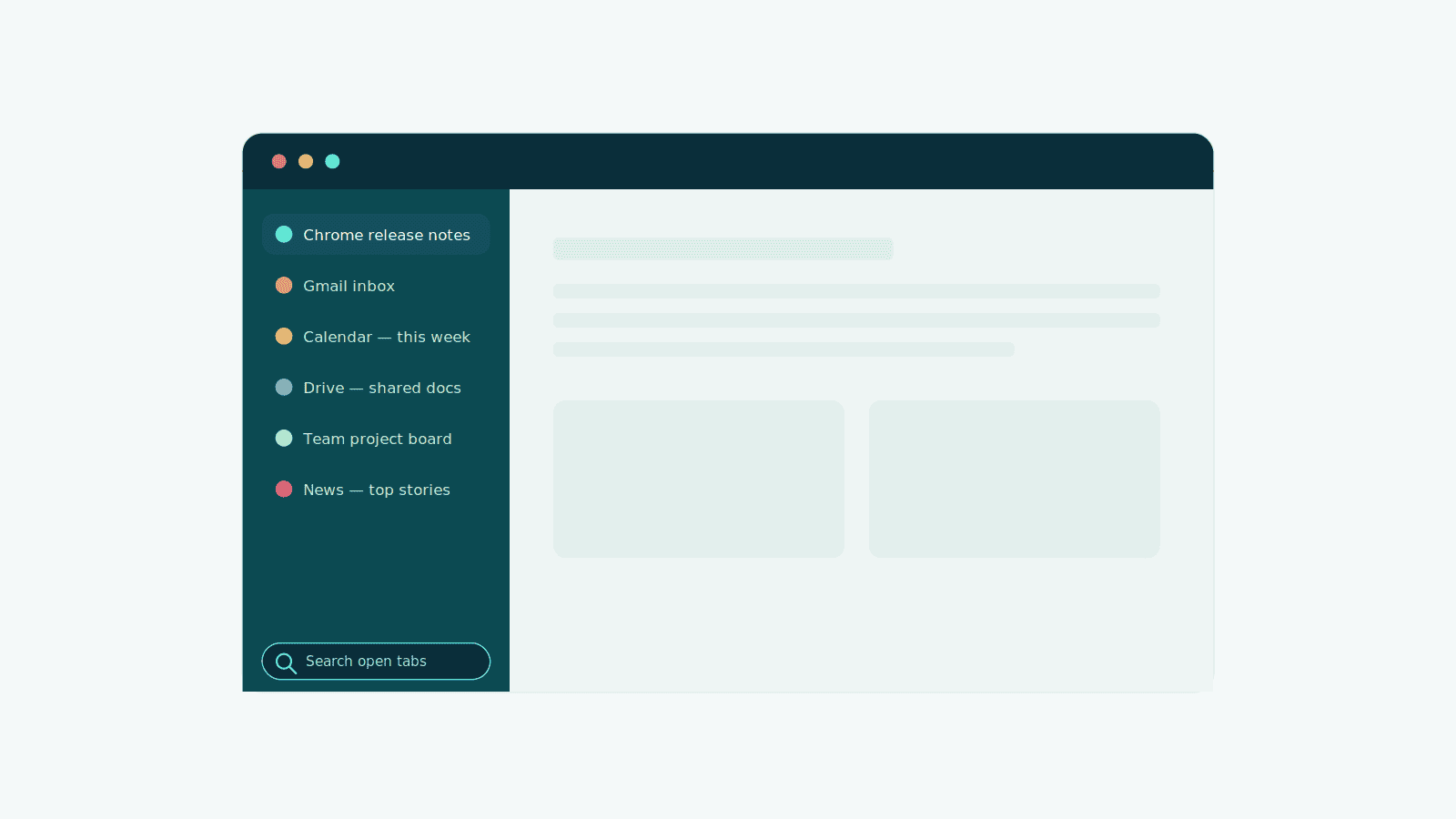
Vertical Tabs solves this by moving your tabs to a scrollable list on the left side of the window instead of a strip along the top — which means actual page titles you can read, plus a built-in search bar that can jump you to any open tab across all your Chrome windows, including a few recently closed ones. To turn it on, right-click any space at the end of your tab strip and select “Show tabs vertically.”
It’s a small change, but if tab hoarding is a personal vice, this is the closest Chrome has come to making that habit manageable.
Small but Genuinely Useful: Save to Drive from the PDF Viewer
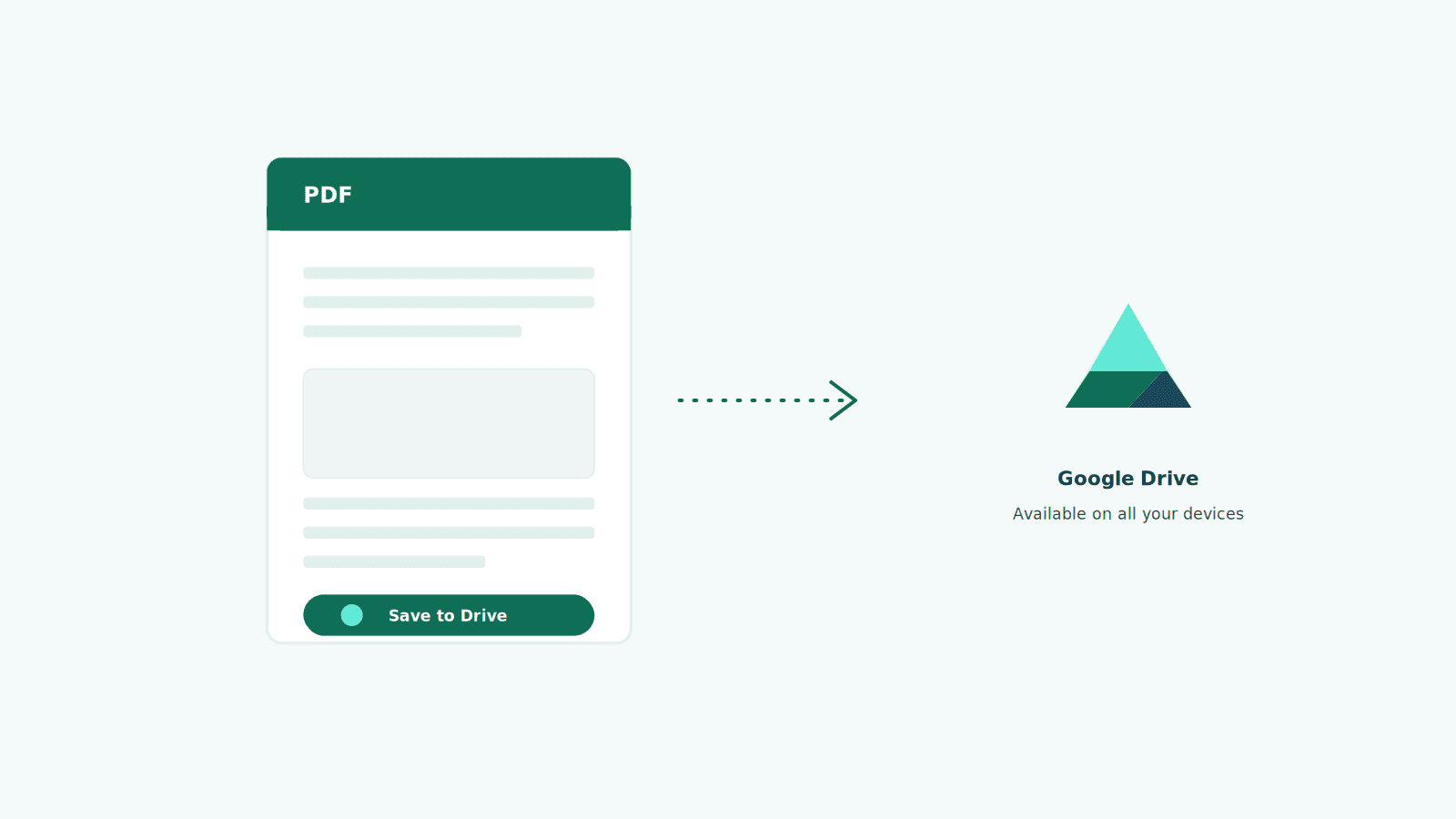
This one’s easy to miss, but it fixes a real annoyance. Chrome doubles as a decent PDF viewer, but until now, getting a PDF you opened in Chrome onto Google Drive meant downloading it locally first, then uploading it separately — an unnecessary two-step detour if you just wanted it available on another device. Chrome’s PDF viewer now has a direct “Save to Drive” button, so that file can land in your Drive in a couple of clicks without ever leaving the tab.
Under the Hood: What Google I/O 2026 Signaled for the Web
Most of what’s above is aimed at everyday browsing, but Google also used its I/O 2026 keynote to lay out where Chrome is headed at a more technical level — worth knowing even if you’re not a developer, because it shapes how fast and capable the sites you use every day will feel:
- A faster V8 engine. Chrome’s JavaScript engine got a meaningful speed boost for popular frameworks like React and Vue, which power a large share of the modern web — translating to snappier sites without any change on your end.
- Faster WebAssembly compilation — up to 22% quicker, according to Google, which matters for browser-based tools like video editors and 3D modeling apps that lean on it heavily.
- New declarative rendering APIs, including one called HTML-in-Canvas, aimed at letting developers build richer, more app-like interfaces directly in the browser.
- Gemini-focused developer tools, like WebMCP, are designed to help site builders make their pages easier for AI agents (like Auto Browse) to understand and navigate.
None of this changes your day-to-day browsing directly, but it’s the reason sites are likely to keep feeling faster and more app-like over the next year.
Should You Update?
If you’re not already on the latest version, this is a reasonable moment to do it. None of these features require you to change how you browse — Gemini and Auto Browse are entirely optional, and the rest (reading mode, vertical tabs, PDF saving) are quiet improvements you can adopt at your own pace. Chrome updates automatically in the background for most people, but if you want to check, it’s under Settings → About Chrome.
Chrome’s evolution from “the fast browser” to “the browser with an assistant built in” has been gradual, but 2026 is the year that shift became hard to ignore. Whether that’s exciting or a little unsettling probably depends on how you feel about AI reading your Gmail — but either way, it’s opt-in, and the smaller fixes alone (looking at you, vertical tabs) are worth the update.


Share Your Views: