Can You Upgrade the RAM on a Windows Laptop?
Short answer: sometimes yes, sometimes no.
It depends on your laptop’s design, the type of RAM it uses, and whether the memory is removable.
Some laptops make upgrades easy. Others are sealed so tightly that changing RAM is either impossible or not worth the risk. Before you buy anything, it’s important to check a few things.
Let’s walk through it in plain language.
Step 1: See if Your Laptop Has Free RAM Slots
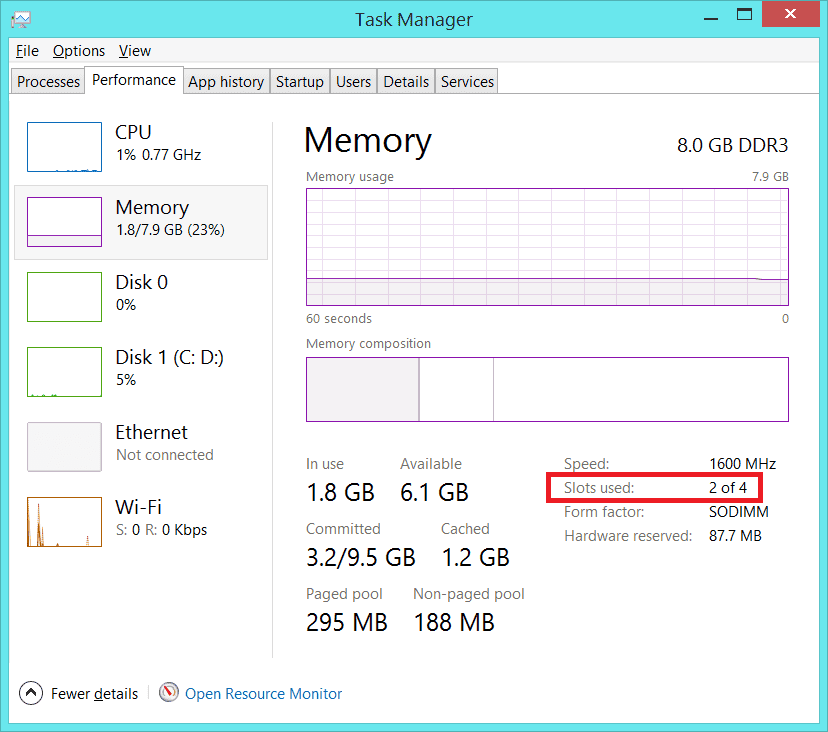
Windows can tell you this in seconds.
- Press Ctrl + Shift + Esc to open Task Manager
- Go to the Performance tab
- Click Memory
Here you’ll see:
- How much RAM you have
- How many slots your laptop supports
- How many are currently in use
If it says “Slots used: 1 of 2”, you’re in luck. You can simply add another stick.
If it says “2 of 2”, you’ll have to replace one or both modules.
Step 2: Find Out What Type of RAM You Need
Not all RAM is the same. Laptops usually use DDR3, DDR4, or DDR5, and the wrong type simply won’t work.
The easiest way to check is with a small free tool like CPU-Z.
Once installed:
- Open the app
- Click the Memory tab
- Note the type, speed, and size
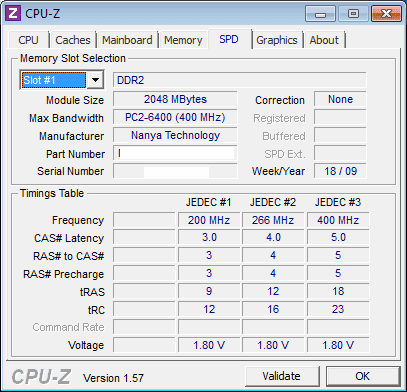
This prevents you from buying RAM that doesn’t fit your system.
Step 3: Understand What You Can Upgrade (and What You Can’t)
There are two common situations:
1) You have an empty slot
This is the best case. You can add another RAM stick without removing anything.
2) All slots are full
You’ll need to replace one or both sticks with higher-capacity RAM.
For example:
- Replace 4GB + 4GB with 8GB + 8GB
You can mix sizes (like 8GB + 16GB), but your system may slow the faster stick down to match the smaller one. For best results, use matching RAM.
Step 4: RAM Speed and Compatibility
Even if you buy faster RAM, your laptop will only run it at the maximum speed it supports.
So if your system supports 2666 MHz and you install 3200 MHz RAM, it will still run at 2666.
That’s normal. Nothing breaks—it just adjusts.
Step 5: Does More RAM Actually Help?
Yes, especially if your laptop:
- Feels slow with many tabs open
- Lags when switching apps
- Freezes while working on large files
More RAM helps your system breathe. Apps load faster, multitasking feels smoother, and Windows stops struggling in the background.
Step 6: Physical Installation (What It Involves)
To install RAM, you usually:
- Turn off the laptop
- Remove the back cover
- Locate the RAM slots
- Insert the new module at an angle
- Press it down until it clicks
Some modern laptops have soldered RAM, meaning it cannot be removed. In those cases, upgrades are not possible.
Final Thoughts
Upgrading RAM is one of the easiest and most cost-effective ways to speed up a Windows laptop—but only if your model supports it.
Before buying:
- Check your slots
- Confirm the RAM type
- Make sure your laptop allows physical access
A few minutes of checking can save you from buying the wrong parts—or opening a laptop that can’t be upgraded at all.
FAQs
1. What should you do if there is no extra RAM slot?
If all RAM slots are already in use, you can’t “add” more memory — you have to replace the existing RAM with a higher-capacity stick.
For example, if your laptop has:
- 4GB + 4GB
You can replace them with: - 8GB + 8GB or 16GB + 16GB (if your system supports it)
Before buying, always check your laptop’s maximum supported RAM on the manufacturer’s website.
2. Is DDR4 different from DDR5?
Yes, they are completely different and not compatible with each other.
DDR5 is newer and faster, but it will not fit in a DDR4 slot, and DDR4 won’t work in a DDR5 system. The physical notch and power requirements are different.
So you must buy the same DDR generation your laptop already uses.
3. Can you add 16GB RAM to an 8GB setup?
Yes, in most cases you can.
An 8GB + 16GB setup will work, but the system will run part of the memory in “single-channel” mode. This means it may not be quite as fast as two identical sticks (like 16GB + 16GB).
It’s safe, stable, and common — just not the most optimized configuration.
4. What happens if you add 3200 MHz RAM to a 2400 MHz system?
Nothing breaks. Your laptop will simply run the faster RAM at 2400 MHz, because the system always uses the speed of the slowest supported component.
So 3200 MHz RAM will downclock to match 2400 MHz.
5. Should you disconnect the laptop battery while upgrading RAM?
Yes, if possible.
For safety:
- Power off the laptop
- Unplug the charger
- Disconnect the internal battery (if accessible)
This prevents electrical damage and protects the motherboard while you install the RAM.
If you want, you can share your laptop model and We will tell you:
- Max RAM supported
- RAM type
- Whether it can be upgraded safely




Share Your Views: