With high-definition devices in place, you may need to share the images that run into Gigabytes. Send these images or other large media files over email can be a challenging task for anyone. Most email servers are not configured to receive more than ten Megabytes of file size. With cloud computing and cloud storage at the disposal of the storage and data sharing needs of everyone, things are better. You can upload such heavy files into these storage places, send the shared link to the recipient and let him download the file. You can do a lot more with such large files by setting permissions on these files while sending them over the shared cloud. If you are using public clouds and are concerned about cloud security this is the best way to secure your data. Here are the details of the procedure to send large files through Gmail.
Steps to send files
Step-1
Open Google drive and right click anywhere on the interface and select the option Upload Files. Now you can select single or multiple files from your local computer’s hard-drive or any other place even your pen drive, detachable hard disk, and a CD.

Step-2
Once you have uploaded one or more large files on Google Drive, open Gmail and click on compose to create a new mail. Now to attach a large file, click on the Google Drive button that is located just next to the attach button.

Step-3
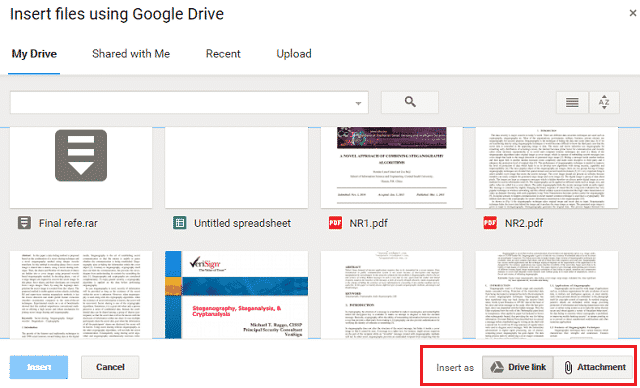
Google Drive will open and you get two options to send the files. You can either insert the file as an attachment or insert it as a drive link.
Step-4
In case you decide to send the file as an attachment, you can send the file as large as 25 MB from Google Drive. The recipient will receive the file from the sender just as it is sent in a normal situation and there will be no mention of google drive on the recipient’s end.
Now, let’s see what happens if we insert the file as a drive link. Once you insert the files into the Gmail message, click on send to send the email from Gmail. It will open another notification. There are a lot many options out there.

Option-1. Click on Share and Send to send it. Once you select this option, Google Drive will automatically share these files with the recipient email ID and send it to the user at the other end.
The recipient will receive the email from a sender with a special mention of “via google Drive”. When the user clicks on this attachment, the link or a google drive URL will open in the browser and you will be prompted to download it on your local storage drive.

Option-2. Send it without sharing. You can see that there is another option to send the file without letting Google Drive share it before sending it.
If you send the file this way, the receiver is not going to open the file and he will be asked to send an access request to the sender. The sender will receive the following notification and ultimately you need to share it with another user in order to give access to him.

Setting Permissions
The best part of sending the file through Google Drive Link is that you can control the way the shared file is accessed on the other end. You can select from the following options to control the permissions.

- Can View. The recipient will be able to only view the file and he cannot make any changes to the original file.
- Can Comment. The recipient will be able to add comments to the file so that the sender can also see it. This is an ideal option to select if you want comments from your team member on a document.
- Can edit. Selecting this option will give full permission to the recipient and he can make any changes to the original file on the google drive (that you sent earlier).
Send Large Files through Email
Sending the file as a google drive link is a useful option to send large files through Gmail. I have checked to send the 10GB file successfully. Have you used the Google Drive link to send a large file? Share your views or tell us about other ways of sending large files through email.


My favourite way to share files is MyAirBridge.com. With this online service I can send up to 20 GB for free, without any registration and with the highest possible encryption during the transfer. If I want to send more, have better speed or own storage, I can purchase one of their affordable plans.