Anyone who has tried to write Sinhala on a computer knows the drill. You install a font, hope the recipient has the same one, then watch your carefully typed paragraph arrive as a row of boxes and question marks. Or you give up entirely and type Singlish, which works until you need to send something that looks professional.
The mobile world solved this problem years before the desktop did. Android and iOS handle Unicode Sinhala without complaint, and a whole generation of Sri Lankan users learned to type their own language on a phone screen long before they could do it comfortably on a laptop.
That shift happened largely because of one app. Helakuru (හෙළකුරු), published under the name Bhasha, gave millions of Sri Lankans a native Sinhala keyboard on their phones, and it is still the reference point for local-language typing. The listing describes it as Sri Lanka’s No.1 Lifestyle App with over 4 million users, and it has collected a stack of awards along the way: Most Popular App of Sri Lanka at the NYDB Awards 2016, the mBillionth South Asian Award 2014, the e-Swabhimani National Award 2013, an NBQSA National Award in 2014, and Sri Lanka’s Best Local Language Product Award in 2014.
Two Keyboard Layouts, Two Kinds of Typists
The reason Helakuru caught on so widely is that it did not force everyone into one typing habit. It supports both Smart Phonetic and Smart Wijesekara layouts.
Phonetic is the entry point for most people. You type Sinhala the way it sounds in Latin characters, and the app converts it, so someone who has spent years writing Singlish in text messages can switch to proper Sinhala script without learning anything new.
Wijesekara is the other camp. It is the standard Sinhala typewriter layout, the one government typists and anyone formally trained on Sinhala keyboards already knows by muscle memory. Having both in the same app means a newsroom and a university student can use the same keyboard for completely different reasons.
Word prediction runs on top of both, and it covers Sinhala as well as English, which matters in a country where a single WhatsApp message routinely switches between the two languages mid-sentence.
Voice Typing and Bilingual Input
Voice typing is the feature people underestimate until they use it. Helakuru handles dictation in both Sinhala and English, which turns long messages into something you speak rather than tap out character by character. For older users especially, this is the difference between using Sinhala digitally and not using it at all: someone who never learned a Sinhala keyboard layout can still send a message in their own script.
The bilingual handling deserves a note too. Sri Lankan typing is rarely monolingual, and an input method that panics every time you drop an English word into a Sinhala sentence becomes exhausting fast. Helakuru is built around the assumption that both languages will show up.
Where Helakuru for PC Comes In
Phones are fine for messages. They are less fine for anything longer.
If you are writing a Sinhala blog post, preparing lecture notes, drafting a document for work, or captioning a batch of images, the phone screen starts to feel like a constraint. The Wijesekara layout in particular was designed for a full-size physical keyboard, and cramming it onto a touchscreen loses most of the speed advantage that trained typists have.
Because the Wijesekara layout only pays off on a full-size keyboard, that itch is exactly what the Helakuru Sinhala Keyboard for PC setup addresses: moving the same layout onto real keys instead of a touchscreen for documents that run to several pages.
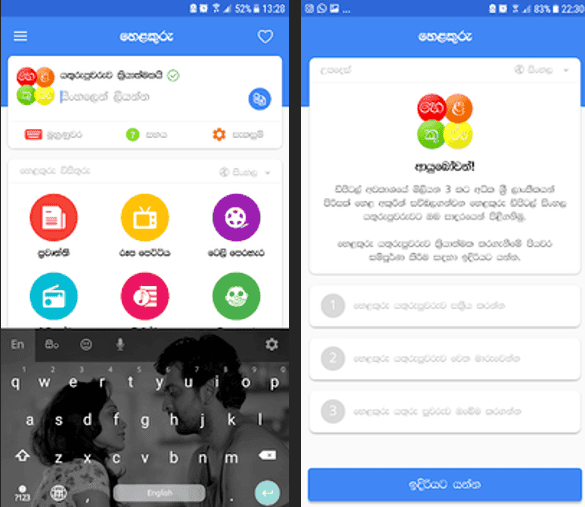
The general approach is the same one used for any Android app on a desktop. An Android emulator creates a virtual Android environment on your Windows machine, and the app runs inside it. The one detail specific to Helakuru is that it works as a system input method rather than a standalone typing window, so you enable it as a keyboard inside that Android environment and then use it across whatever apps you have running there.
What Sinhala Users Do With It Day to Day
The Lifestyle category label makes more sense once you see how the app is used. It is not a productivity tool people open deliberately; it is the layer underneath everything else they type. Typical uses include:
- Messaging family and friends in Sinhala script instead of Singlish transliteration
- Writing social media posts and comments that display correctly on every device
- Filling in forms, notes and search queries in Sinhala
- Dictating messages by voice when typing is inconvenient
- Switching between Sinhala and English within the same sentence without changing keyboards
None of these are dramatic on their own. Together they add up to the reason the app crossed four million users in a country of around twenty-two million people.
Unicode, Fonts and Why Output Matters
The technical argument for a proper Sinhala input method comes down to encoding.
Legacy Sinhala typing relied on custom fonts that mapped Sinhala glyphs onto Latin character codes. Text typed that way looks correct on the machine that created it and turns into garbage everywhere else. Unicode fixed this by giving Sinhala its own code points, which every modern operating system and browser understands.
Helakuru produces Unicode output. That means text typed in the app pastes cleanly into a browser, an email, a chat window, or a document without carrying font dependencies along with it.
Why That Matters Once You Start Copying Text Around
On a desktop, this matters more than on a phone, because desktop work tends to move between applications. Text typed in one window gets pasted into another, saved, emailed, uploaded. Unicode is what keeps the Sinhala intact through all of those hops.
It also means search works. Sinhala typed in Unicode is indexable and findable, which legacy font text never was.
Choosing Between Phonetic and Wijesekara
If you are new to the app and unsure which layout to start with, the decision is mostly about your background.
Pick Smart Phonetic if you already type Singlish comfortably and want the shortest learning curve. Pick Smart Wijesekara if you have formal Sinhala typing training or you expect to type Sinhala in volume and are willing to invest in learning the layout properly.
The second option pays off far more once there is a physical keyboard involved. A trained typist running the Wijesekara layout the way it was originally meant to be used, on real keys instead of glass, is where Helakuru stops being a phone convenience and turns into a writing tool.


Share Your Views: